
Connect Codex
Works for the Codex CLI, the IDE extension and the Codex app. This is also how ChatGPT users connect.
Before you start
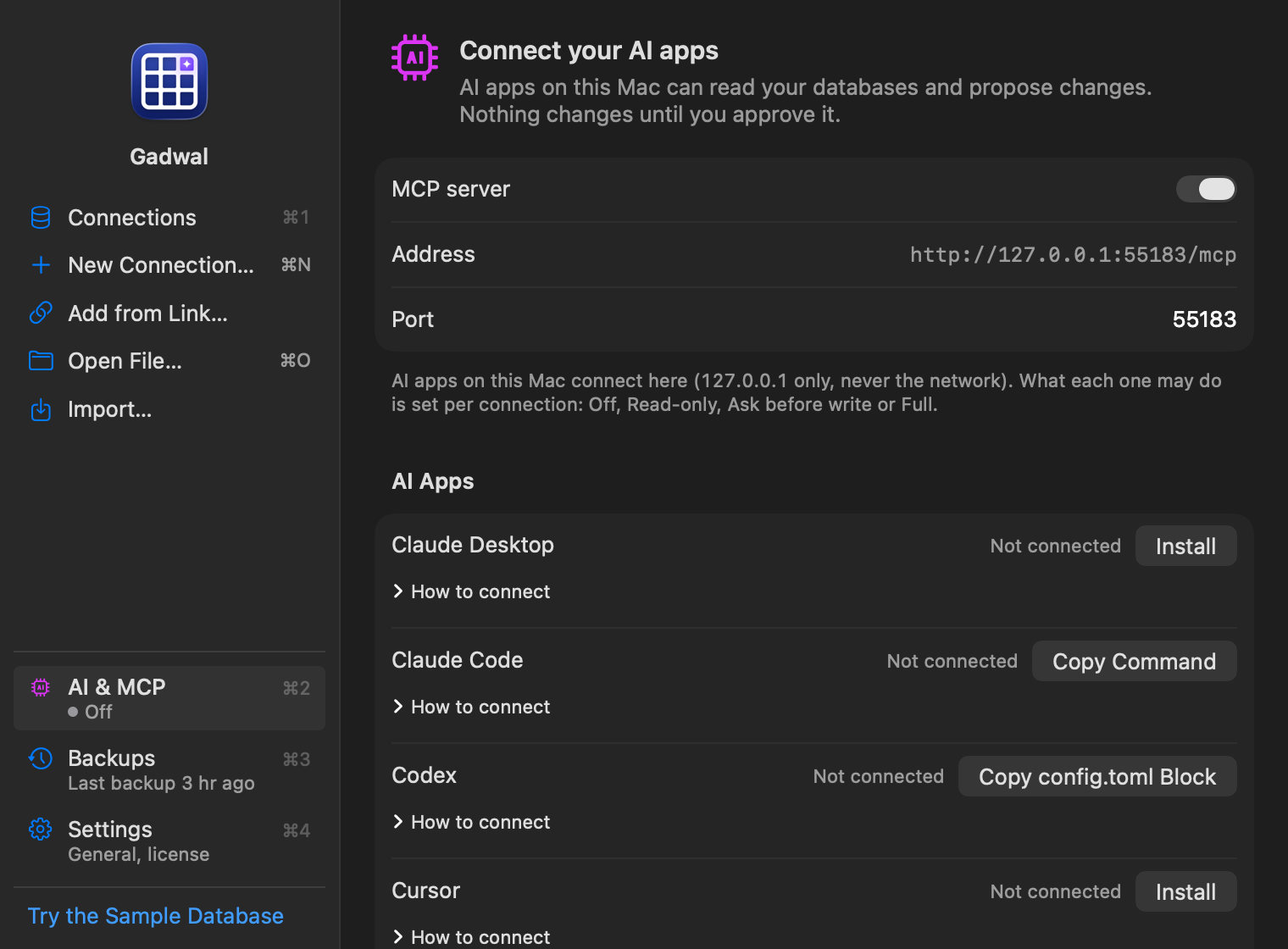
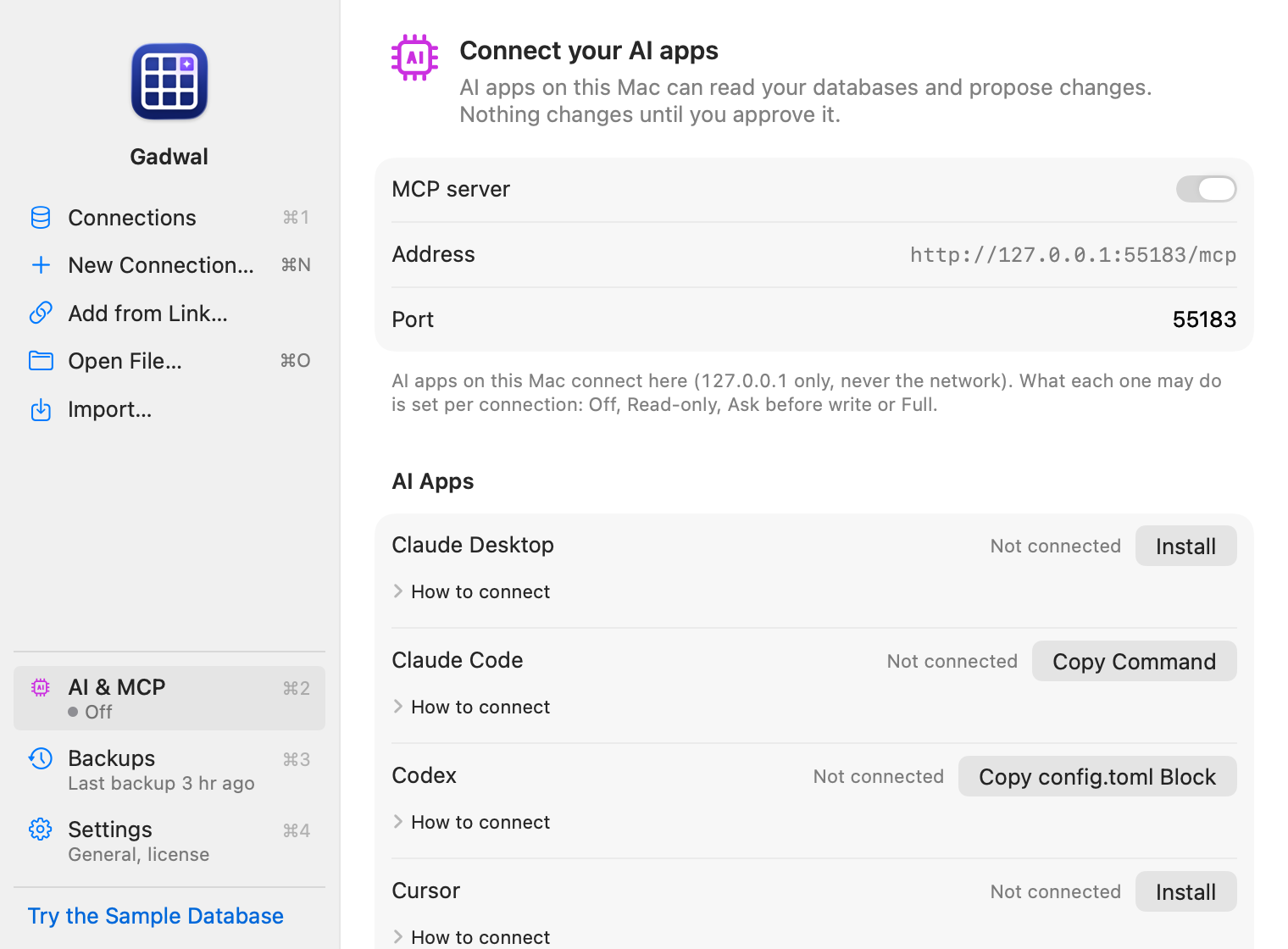
- Open Gadwal and click AI & MCP in the sidebar of the Connections window (⌘2). The same page is also a tab in Gadwal › Settings (⌘,).
-
Turn on MCP server. The Address line shows
http://127.0.0.1:55183/mcp(you can change the port below it). The server only listens on this Mac. - Check each connection's AI level: Off, Read-only, Ask before write or Full. Production connections start at Read-only. The AI only sees connections that aren't Off. See AI levels and hidden columns.
- Keep Gadwal open. The server runs inside the app, so AI tools stop working when you quit it.
AI tools need an active trial or the lifetime unlock. After the trial, turning the server on opens Unlock, and a server that is still running answers every tool call with a message saying so.
In Gadwal
Find the Codex row under AI Apps on the AI & MCP page. Its button reads Copy config.toml Block, and How to connect under it lists the same steps as this page.
Add the server
-
On the AI & MCP page, under AI Apps, click Copy config.toml Block on the Codex row. You get:
[mcp_servers.gadwal] url = "http://127.0.0.1:55183/mcp" http_headers = { "Authorization" = "Bearer <token>" } -
Open
~/.codex/config.tomlin a text editor (create it if it doesn’t exist) and paste the block at the end. -
Restart Codex. In the CLI,
/mcplistsgadwal; the Codex app and the IDE extension read the same file. -
Ask it to list your Gadwal connections.
The token is written in the header on purpose. Codex can also read a token from an environment variable, but the Codex app started from the Dock doesn’t see variables set in your shell profile.