
Connect Claude Code
Copy one command from Gadwal and paste it into Terminal.
Before you start
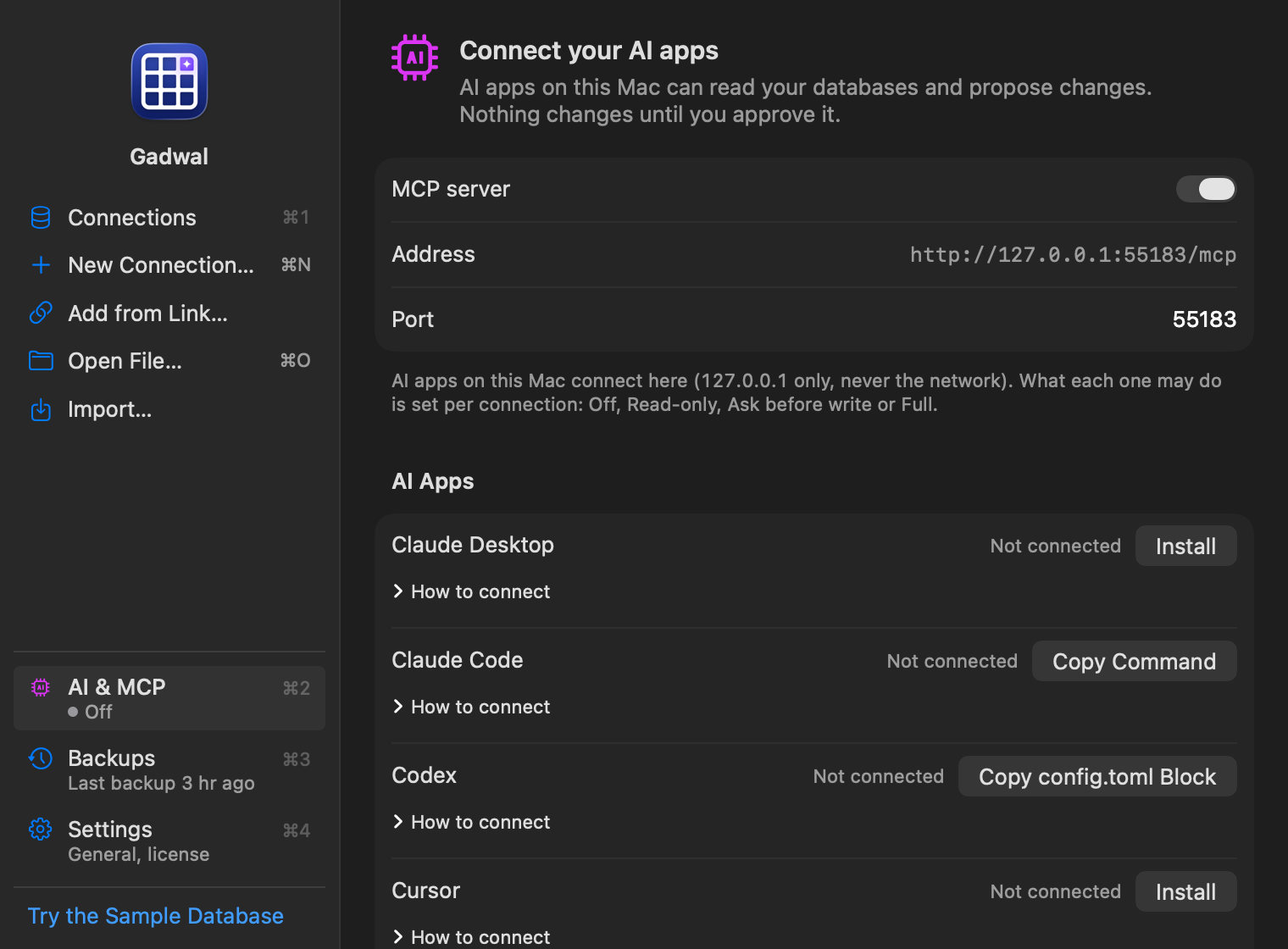
- Open Gadwal and click AI & MCP in the sidebar of the Connections window (⌘2). The same page is also a tab in Gadwal › Settings (⌘,).
-
Turn on MCP server. The Address line shows
http://127.0.0.1:55183/mcp(you can change the port below it). The server only listens on this Mac. - Check each connection's AI level: Off, Read-only, Ask before write or Full. Production connections start at Read-only. The AI only sees connections that aren't Off. See AI levels and hidden columns.
- Keep Gadwal open. The server runs inside the app, so AI tools stop working when you quit it.
AI tools need an active trial or the lifetime unlock. After the trial, turning the server on opens Unlock, and a server that is still running answers every tool call with a message saying so.
In Gadwal
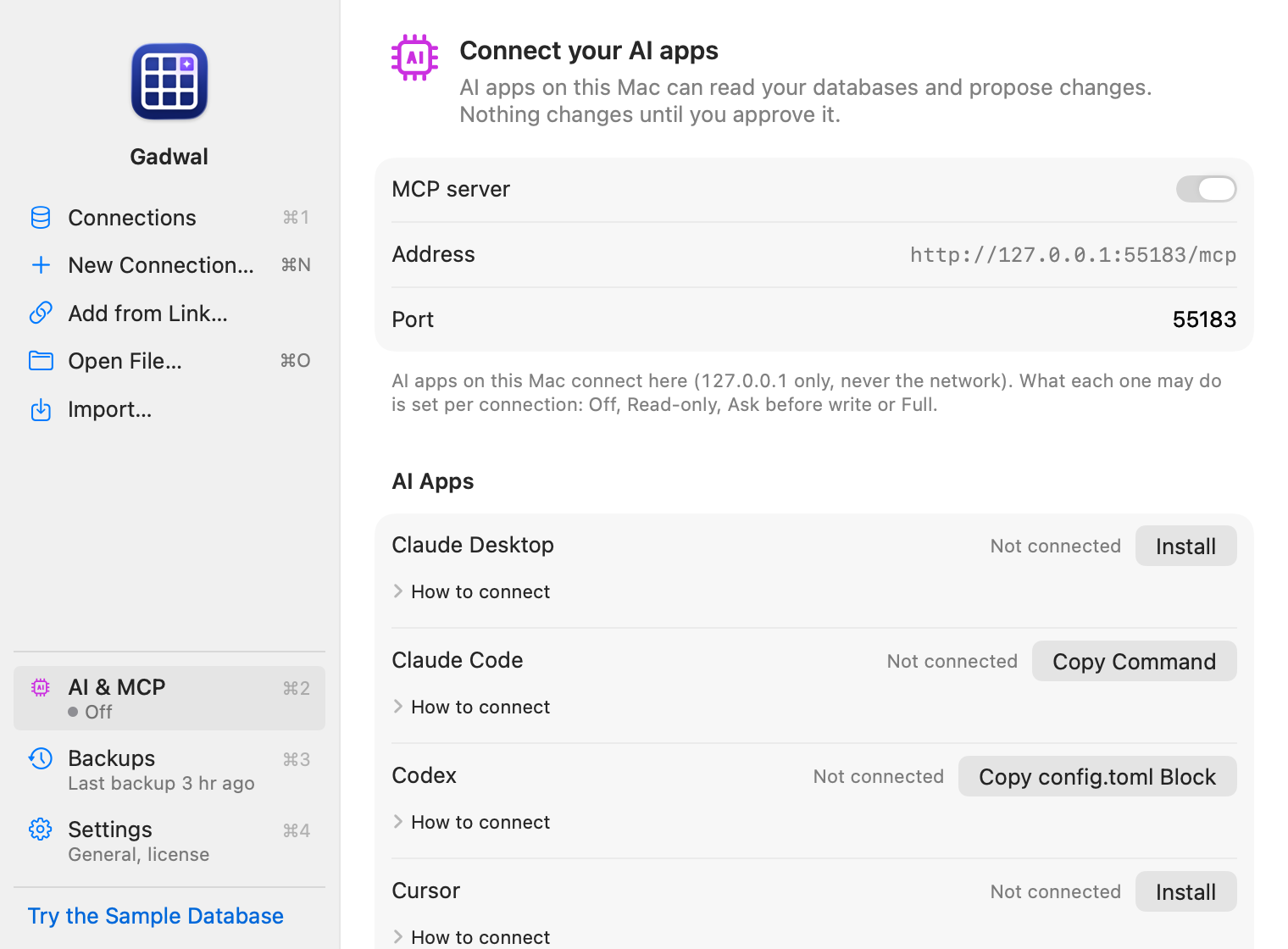
Find the Claude Code row under AI Apps on the AI & MCP page. Its button reads Copy Command, and How to connect under it lists the same steps as this page.
Add the server
-
On the AI & MCP page, under AI Apps, click Copy Command on the Claude Code row. Gadwal creates a token and copies a command like this one, with your real token in place of
<token>:claude mcp add --transport http --scope user gadwal http://127.0.0.1:55183/mcp --header "Authorization: Bearer <token>" -
Paste it into Terminal and press Return.
--scope usermakes Gadwal available in every folder. Claude Code keeps the address and token in~/.claude.json. -
Start
claudeand type/mcp.gadwalappears in the list as connected. -
Ask: “Using gadwal, describe the tables in my Sample Store connection.”
Notes
-
Claude Code saves the token in its own user config file in plain text. Anyone who can read your home folder can read it. Make a new token in Gadwal if you think it leaked.
-
To remove it:
claude mcp remove --scope user gadwal -
Writes on an “Ask before write” connection appear in Gadwal’s review panel. Claude Code can wait up to 120 seconds for your answer, then check again.