
WordPress mode
Gadwal recognizes a WordPress database and adds views and tools made for it.
Connect to the site’s database
- Create a MySQL connection with the database name, user and password from the site’s
wp-config.php(DB_NAME,DB_USER,DB_PASSWORD). - Most hosts don’t open MySQL to the internet. Turn on SSH in the connection, enter the host’s SSH address and user, and pick your key file. Use
127.0.0.1as the database host. Some shared hosts instead ask you to allow your IP address for remote MySQL in their control panel. - Connect. When Gadwal finds an options table with
siteurl, a WordPress chip appears and the table prefix (wp_, a custom one, or multisitewp_2_) is detected for you.
Friendly views
A WordPress section in the sidebar lists Posts and Pages, Users (with roles decoded), Options (with an autoload size meter that flags options over 1 MB), Comments, Plugins and WooCommerce Orders. Each view is a normal grid, so you edit and commit with ⌘S as usual.
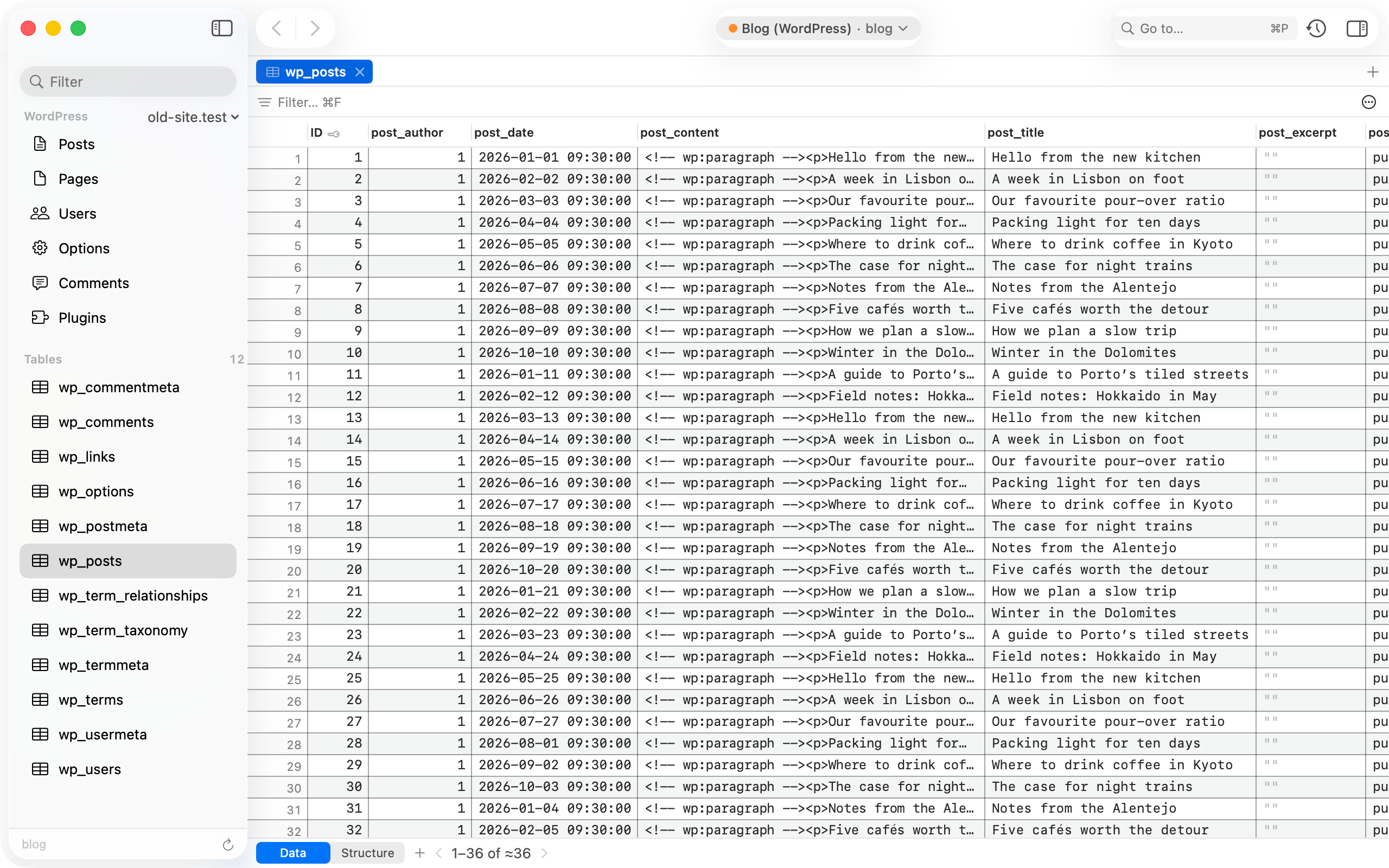
Serialized data
Cells holding PHP-serialized data open as a tree. When you save, Gadwal writes the value back with the correct UTF-8 byte lengths. Invalid serialized data is flagged and never rewritten silently.
Search and replace
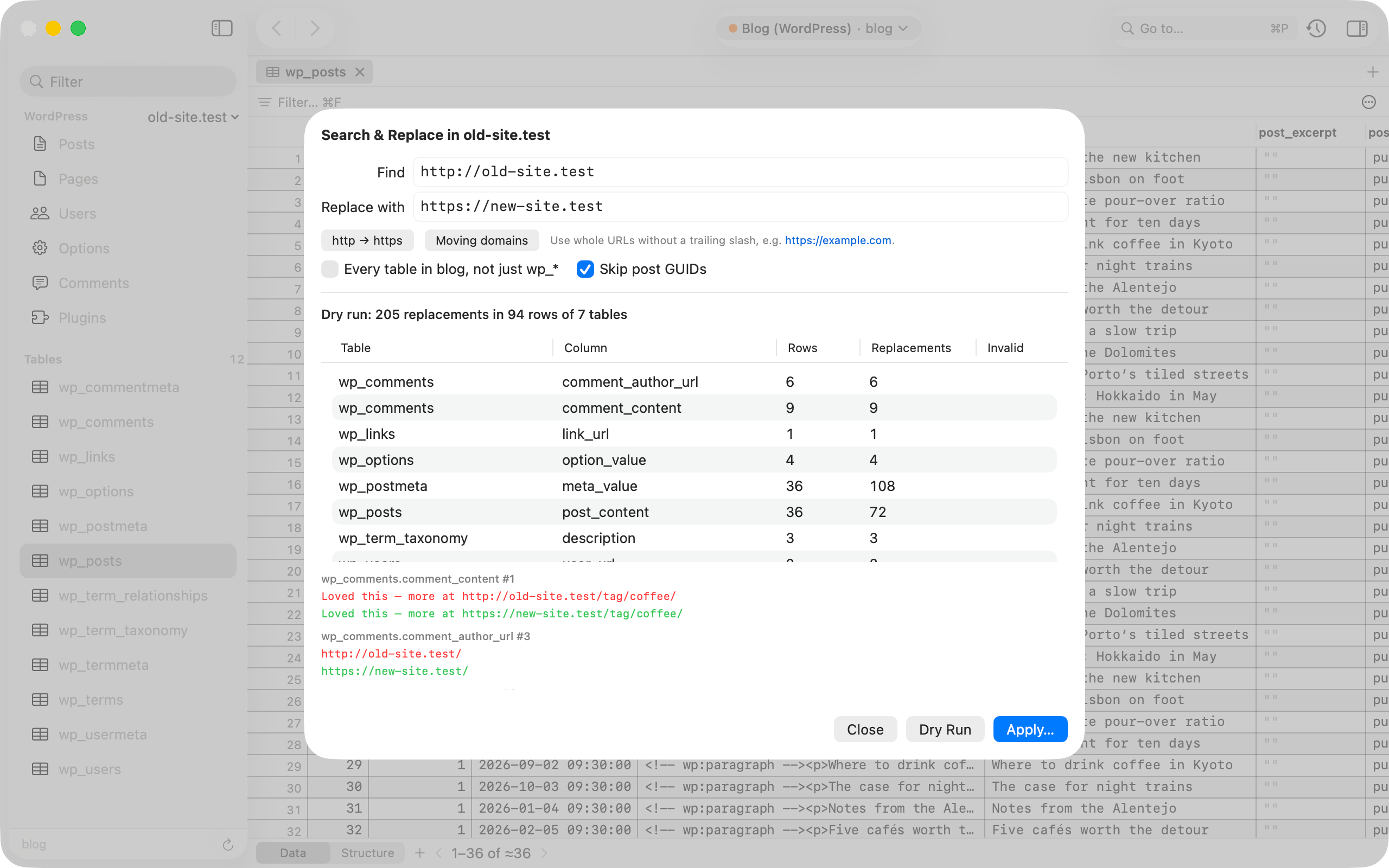
Use it to move a domain or switch from http to https.
- Choose Search & Replace… in the WordPress section of the sidebar, or from the WordPress menu.
- Enter the old and new text, for example
http://old.exampleandhttps://new.example. - Run the dry run. It counts matches per table and column without changing anything. Post GUIDs are skipped by default.
- Apply. Gadwal backs up the affected tables first, then writes in batches inside a transaction. Plain, JSON and serialized values are all handled, including nested arrays and objects.
With an AI
Connected AI apps get WordPress tools too: site info, reading and updating options, and search and replace, which defaults to a dry run. On an “Ask before write” connection the real run waits for your approval.
WordPress mode is part of the free tier.